The sales gallery touchscreen: how a showroom screen sells a home that isn’t built yet
A scale model shows the building; a touchscreen next to it lets a visitor walk the actual home. In gallery mode the screen invites people in on its own, walks them through the rooms you choose, resets itself 90 seconds after they leave, and sends the same tour to their phone with a QR code. Only your team, with a PIN, can change it.
 Matan Assulin, Founder of Unbuilt
Updated · 3 min read
On this page
This guide is for developers and sales teams with a sales gallery, a model-home office or a booth, and a project buyers can’t walk into yet. It covers what a showroom screen does that a brochure and a model can’t, how gallery mode runs it, and how to set one up.
1. Why a screen, next to the model
Buyers walking into a sales gallery see a model of the building, some renderings and a price list. What they can’t see is the thing they’re buying: how big the kitchen feels, what the living room looks out on, where the bed goes.
A touchscreen next to the model fills that gap. Visitors walk through the residence with a finger, at their own pace, while the agent is free to talk. It is the same 3D tour your buyers open on a phone, so there’s nothing extra to build.
2. The welcome screen pulls people in
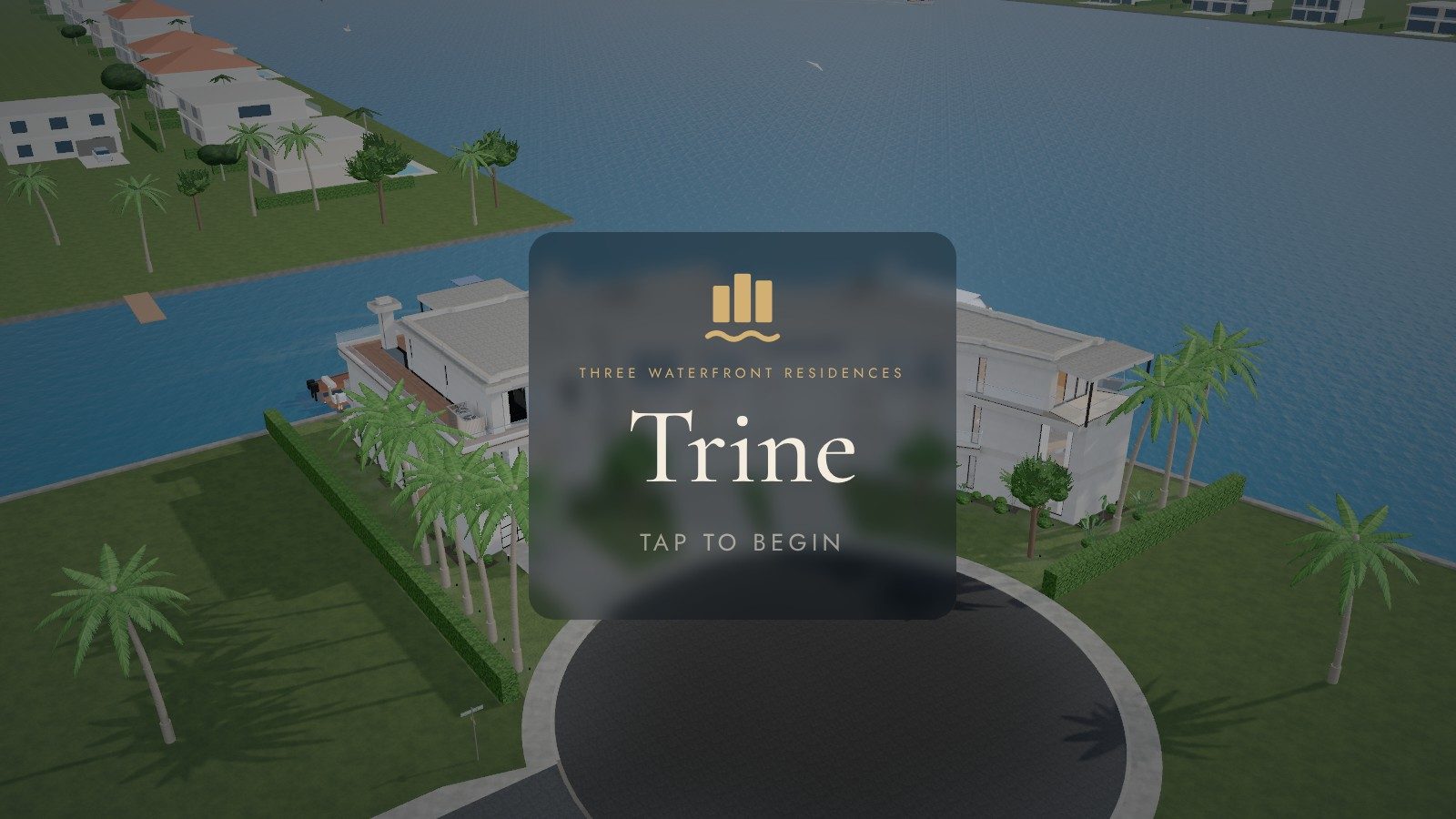
A blank screen gets ignored. In gallery mode, when nobody is touching it, the screen shows your project’s name with “Tap to begin” over a slow, moving view of the building. It changes a little every minute, so it never looks frozen and it doesn’t burn in.
3. A guided path through your best rooms
Most visitors give a screen a minute or two. A Next room button walks them through the rooms you pick, in your order: say the living room, the kitchen, the primary suite, then the terrace. They can leave the path and wander whenever they like.
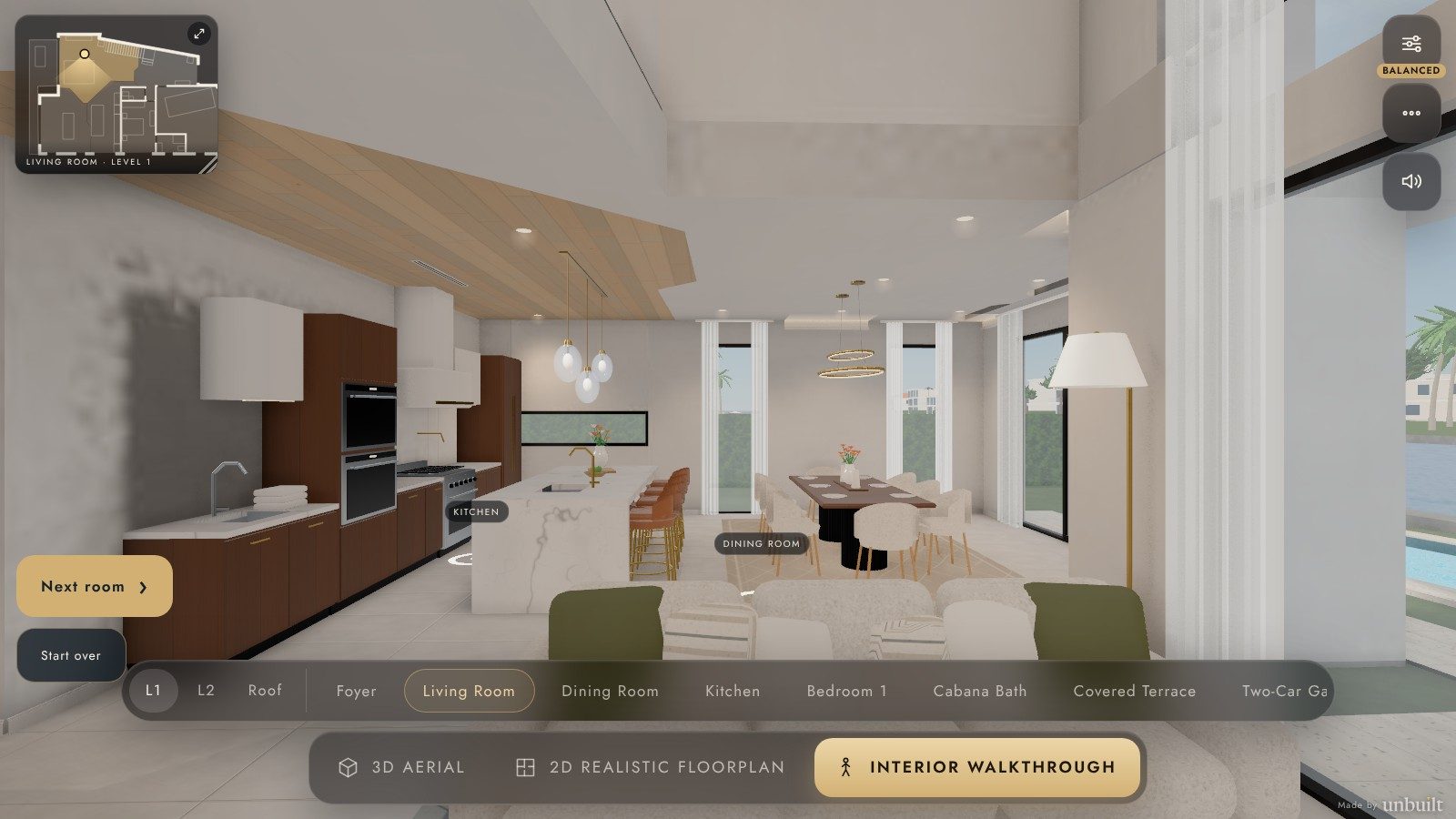
Start over takes them back to the beginning. Morning, golden hour and night are one tap away, as on the phone tour.
4. It resets itself for the next visitor
Nobody on your team should have to tidy the screen between visitors. Ninety seconds after the last touch, the tour goes back to the welcome screen on its own, at the start of the path, ready for the next person.
5. A QR code sends the tour home
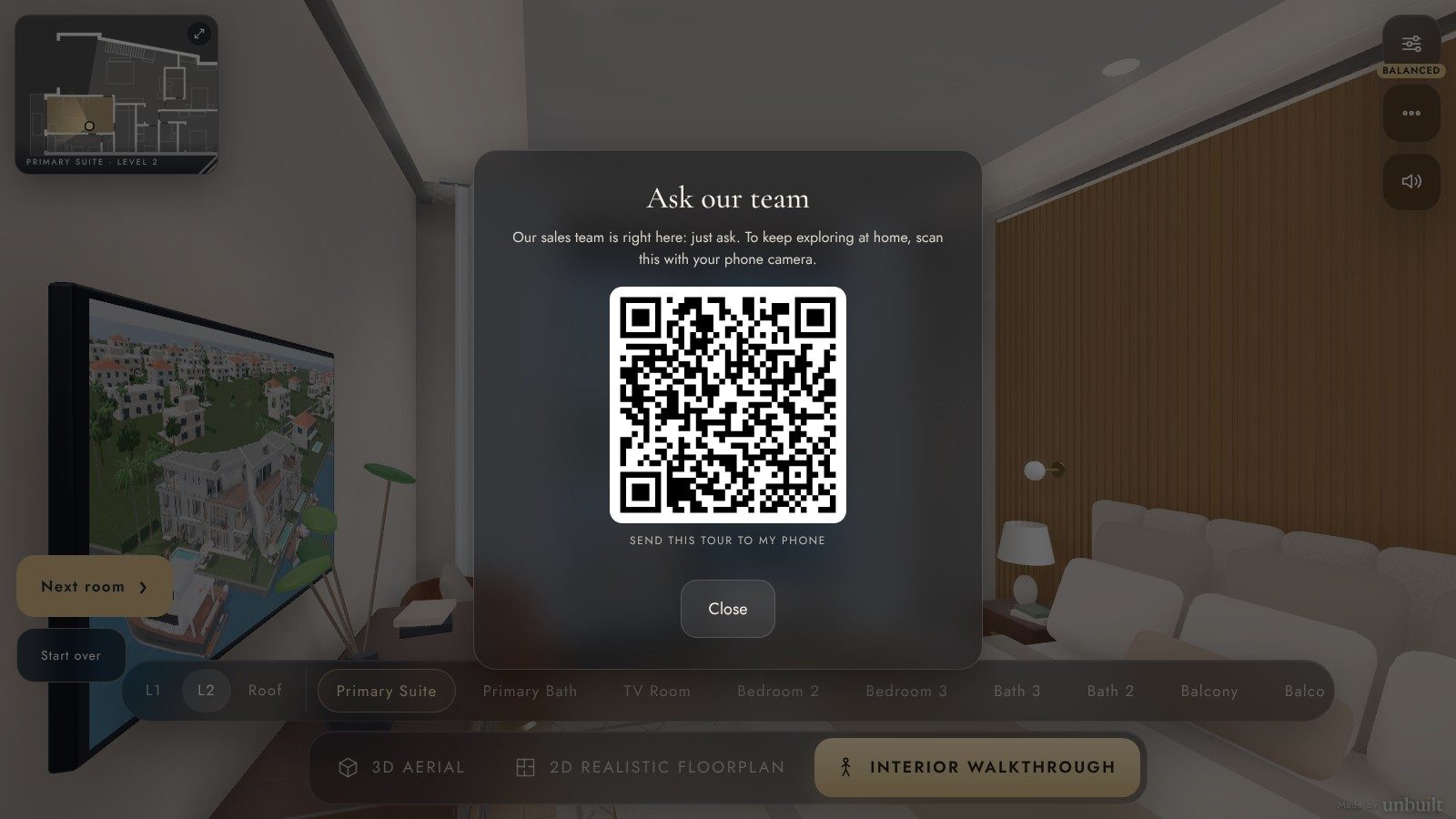
The decision rarely happens in the gallery. It happens at the kitchen table that evening. On the showroom screen, the usual enquiry form is replaced by Ask our team: a note that the sales team is right there, and a QR code that opens the same tour on the visitor’s phone. A printed QR card at the station does the same for anyone who didn’t touch the screen.
6. Locked to your project, with a staff PIN
A screen on a sales floor has to behave like a kiosk. In gallery mode visitors can’t leave the tour, open another website, download anything or change settings. A hidden staff menu, behind a PIN only your team has, can reset the screen at once, switch the guided path on or off, set a seated eye height, or leave gallery mode to fix something.
7. Which screen
- A wall or pedestal touchscreen (43 to 65 inches) beside the model. The most visible choice for a gallery.
- A tablet on a stand. Cheaper, and good on a counter, at a booth or in a model-home office.
- A small computer behind a touch display. The tour looks best with a proper graphics card; a basic computer still runs it, at a lower quality the screen picks for itself.
Whatever you choose, run the browser full screen, turn off sleep, and put it on good Wi-Fi.
8. How your team uses it
- Let visitors start it themselves. The welcome screen does the inviting.
- When someone lingers, walk over and press Next room with them. Point out the ceiling height and the view.
- Finish on the terrace at golden hour, then show them the QR code.
- Say goodbye and leave it. The screen resets on its own.
9. What it costs
Gallery mode comes with the tour. Sales gallery setup is $1,000 per project on either plan: we lock your screens to the tour, set your guided path, make your QR card, give your team a printed guide with your staff PIN, and train them on a call. You buy the screen you like. See a sample team guide (PDF).
Headsets are the next step for galleries that want buyers to stand inside the home at full size. VR is in preview; see VR and showroom screens.
Questions
Does the touchscreen need an app?
No. It runs in the screen’s web browser, full screen. There is nothing to install or update.
Can visitors break it or wander off to other websites?
No. In gallery mode the tour is locked: no links out, no downloads, no settings. Only your team can leave gallery mode, with the staff PIN.
What happens when someone walks away halfway through?
After 90 seconds with nobody touching it, the screen goes back to the welcome screen for the next visitor.
Can buyers keep the tour?
Yes. “Ask our team” shows a QR code that opens the same tour on their phone, and you get a printed QR card for the station.
Is gallery mode live?
Yes, on touchscreens. VR headsets are in preview.

